Revit to render: a living room with stairs from a Shaded view
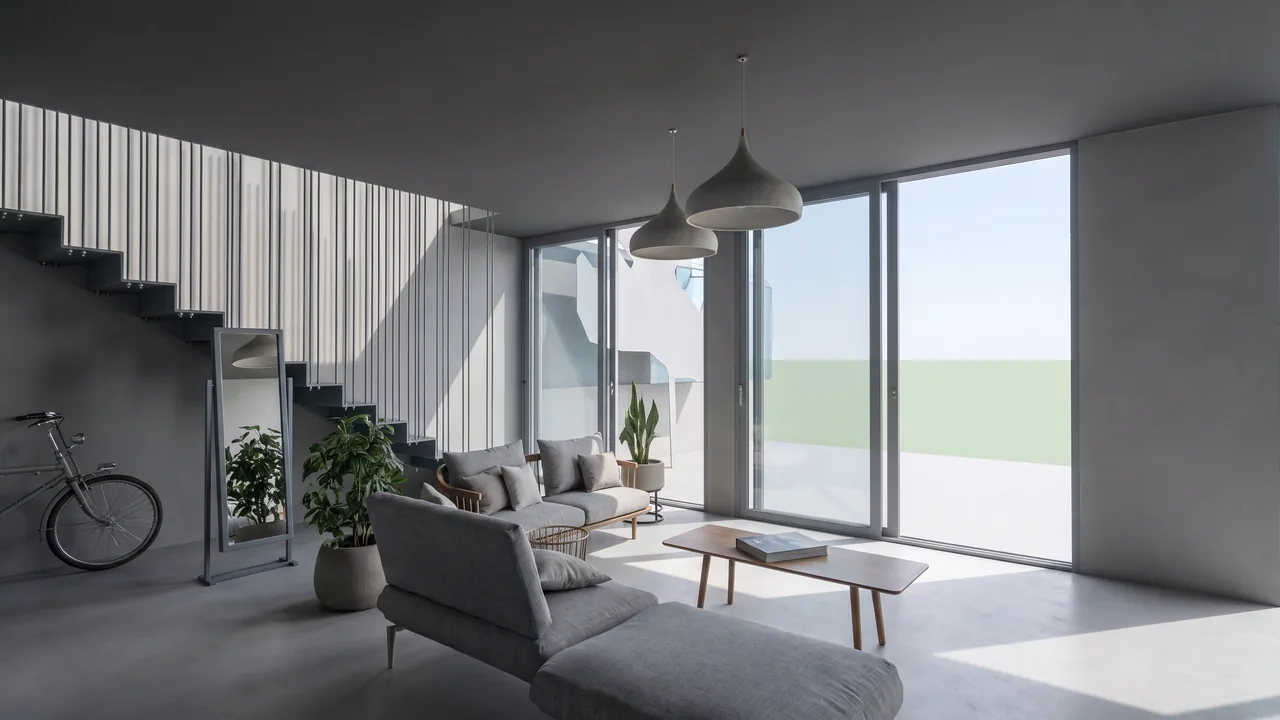
The input was a grey Revit 3D view of a living room with stairs, sofas and glass doors, in Shaded style. RendScene kept the camera and the geometry and added concrete, wood, plants and daylight.
Input: 3D modelFeature: 3D model to render
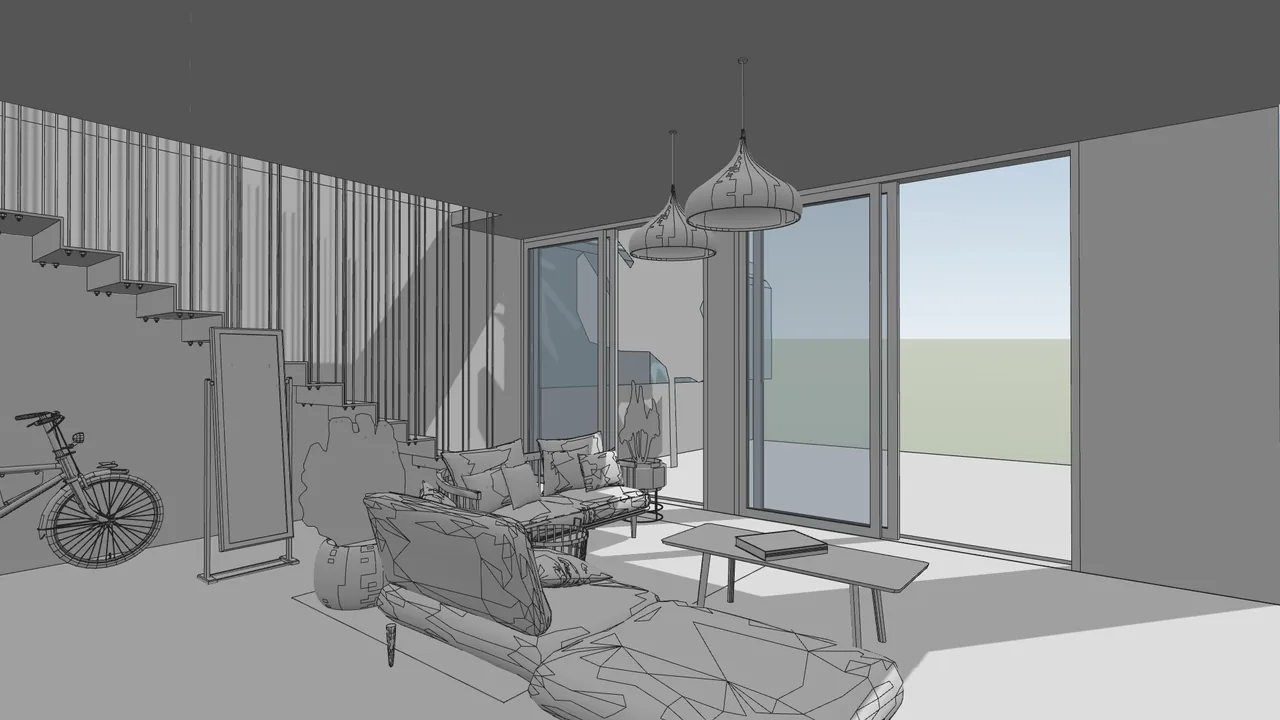
Before
After
Drag the slider to compare the original with the render.
What changed — and what stayed the same
- The stairs, the sofas and the glass doors stayed in place.
- Grey Shaded surfaces became concrete and wood.
- Plants and daylight bring the room to life.
- The camera of the Revit view did not change.
How to do it
Get the same result with your own image
- 1
In Revit, set the 3D view to Shaded or Realistic and take a screenshot, or export the model as IFC and open it in RendScene.
- 2
Choose the 3D model option and, if you want, describe the materials, style or time of day.
- 3
Generate, compare the options side by side and download the one you like in 2K or 4K.
Questions about this example
No. Shaded, Realistic or even Hidden Line views work; a clean view without annotations gives the best result.
Yes. The images you create in RendScene are yours to use in presentations, proposals, listings and social media. Free trial renders carry a watermark; paid plans don't.
No. RendScene runs in the browser on any computer, and the rendering happens on our servers.


