Lumion keyboard shortcuts
Shortcuts for Lumion 2024 and newer (up to Lumion Pro 2026) to navigate, place and edit objects and work in Photo and Movie mode, grouped and checked against official Lumion support. Download the free PDF.
44 official shortcuts
No sign-up, no e-mail. Print it and keep it next to your keyboard.
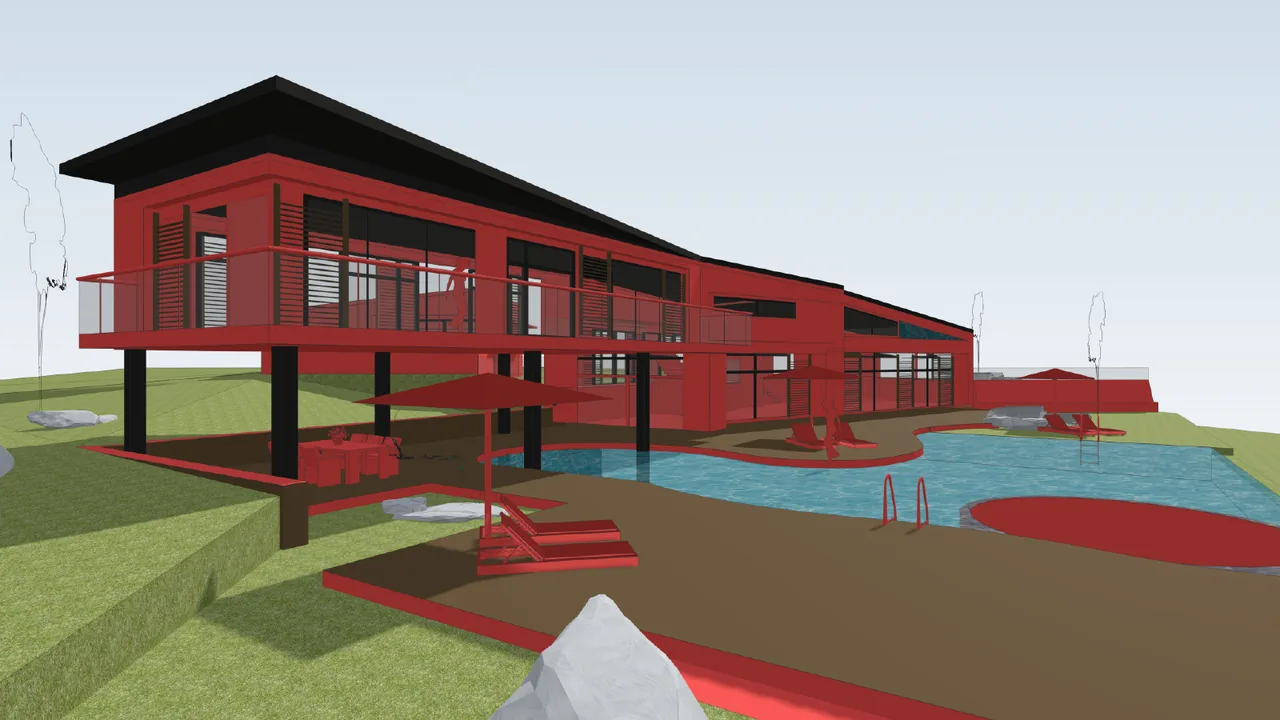
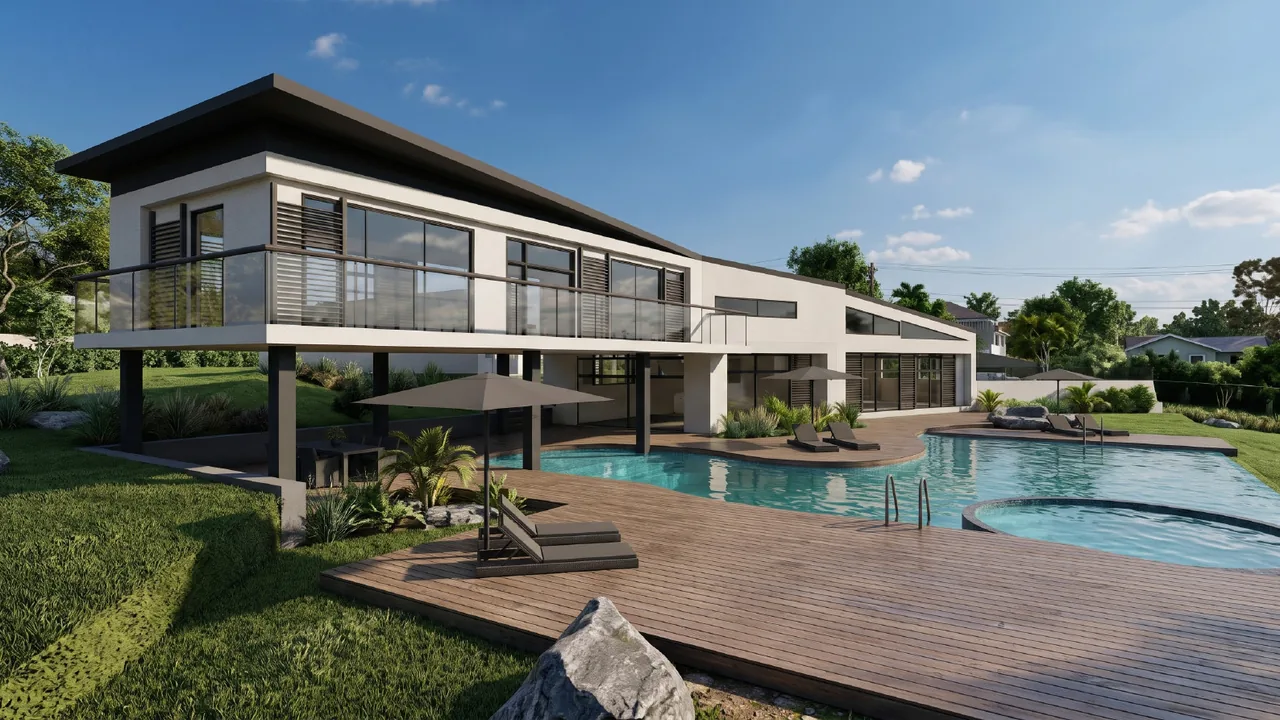
Render made with RendScene from a 3D model image.
Navigation and camera
| Shortcut | Command |
|---|---|
| W/↑ | Move forward |
| S/↓ | Move backward |
| A/← | Move left |
| D/→ | Move right |
| Q | Move up |
| E | Move down |
| Shift+W A S D | Move faster |
| Space+W A S D | Move very slowly |
| Shift+Space+W A S D | Move very fast |
| right-drag | Look around |
| middle-drag | Pan |
| mouse wheel | Move forward / backward |
| O+right-drag | Orbit around a point |
| double right-click | Teleport to that spot |
| Ctrl+H | Reset camera pitch to horizontal |
Quality and display
| Shortcut | Command |
|---|---|
| F1 | Editor quality: 1 star (all shadows off) |
| F2 | Editor quality: 2 stars |
| F3 | Editor quality: 3 stars |
| F4 | Editor quality: 4 stars (highest) |
| F6 | High-quality preview: automatic / manual |
| F7 | Cycle editor resolution |
| F8 | Show spotlight shadows (hold) |
| F9 | Low / high-quality trees and plants |
| F11 | Build mode / Theater mode |
Placing objects
| Shortcut | Command |
|---|---|
| click | Place a copy of the selected model |
| V+click | Place with random size |
| H+click | Move up / down while placing |
| Ctrl+click | Place 10 copies at random (cluster) |
| Ctrl+V+click | Place 10 copies with random size |
Selection
| Shortcut | Command |
|---|---|
| Ctrl+click and drag | Rectangle selection |
| Ctrl+Shift+click and drag | Add to the selection |
| Ctrl+click | Deselect all (on empty space) |
Modify
| Shortcut | Command |
|---|---|
| Alt+click and drag | Duplicate the selected object |
| G+click and drag | Snap to the landscape only |
| F+click and drag | Align to the surface below |
| Shift+click and drag | Move without snapping |
| R+click and drag | Rotate (heading) |
| L+click and drag | Scale |
| K | Face objects toward the cursor (while rotating) |
Photo and Movie mode
| Shortcut | Command |
|---|---|
| Ctrl+1…0 | Save a camera viewpoint |
| Shift+1…0 | Load a saved viewpoint |
| Ctrl+C/Ctrl+V | Copy / paste a photo or clip |
| Space | Play / stop (over the timeline) |
| F | Orthographic view: align to the surface |
List checked on October 25, 2026 against the official Lumion help page. See the official source
Create your own shortcuts
Lumion's default shortcuts can't be changed. What you can change is the camera control scheme: in the settings you pick the one that matches your CAD program, and the mouse orbits and pans the way you're already used to.
A finished render with no wait and no graphics card
Want to compare? With RendScene you upload a screenshot of your model (from SketchUp, Revit, Archicad or Rhino) or open the 3D model in the browser and get 2K or 4K renders in minutes, with nothing to install. Works on any computer.
- 5 free renders to try, no credit card
- Several options per render to choose from
- Change materials, light and context afterwards