Revit AI rendering, right in your browser
Export a Revit view as an image and get a photorealistic render in seconds. No plugin, no graphics card and no setting up materials and lights in the model.
- Works with any version of Revit, including Revit LT
- 3D views, floor plans, sections and elevations
- What you modelled stays there: geometry, proportions, openings and the camera
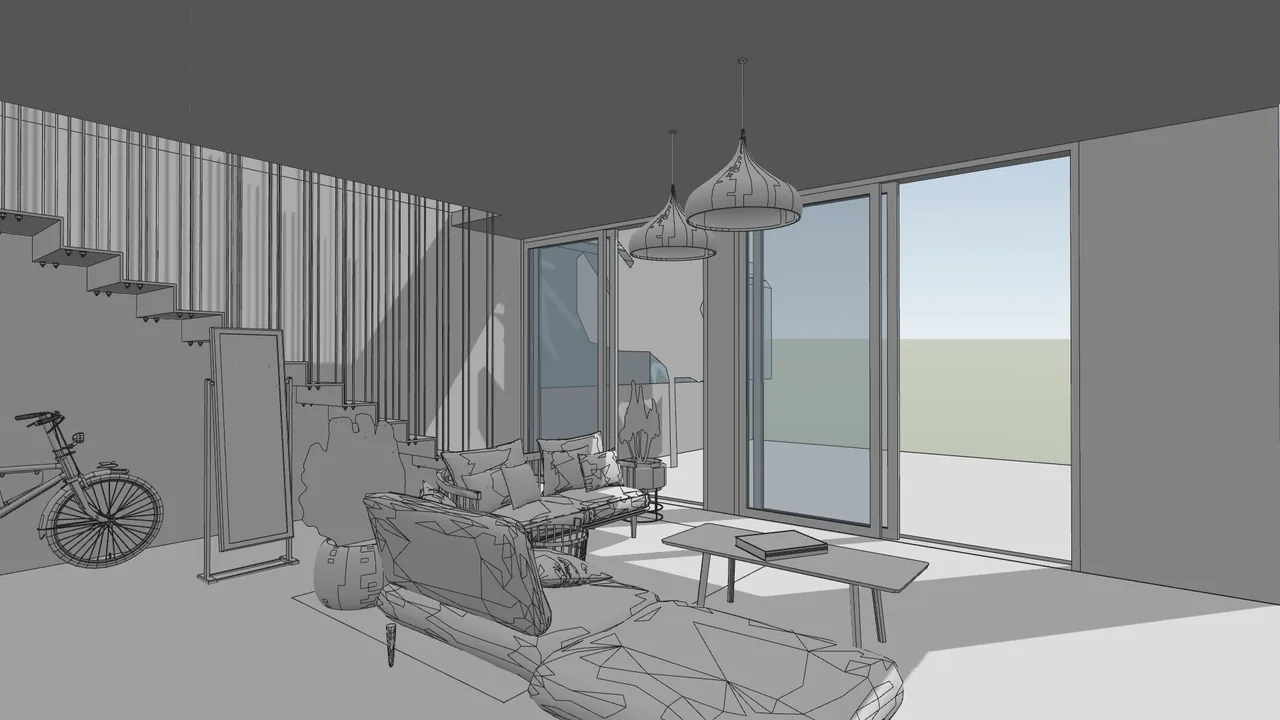
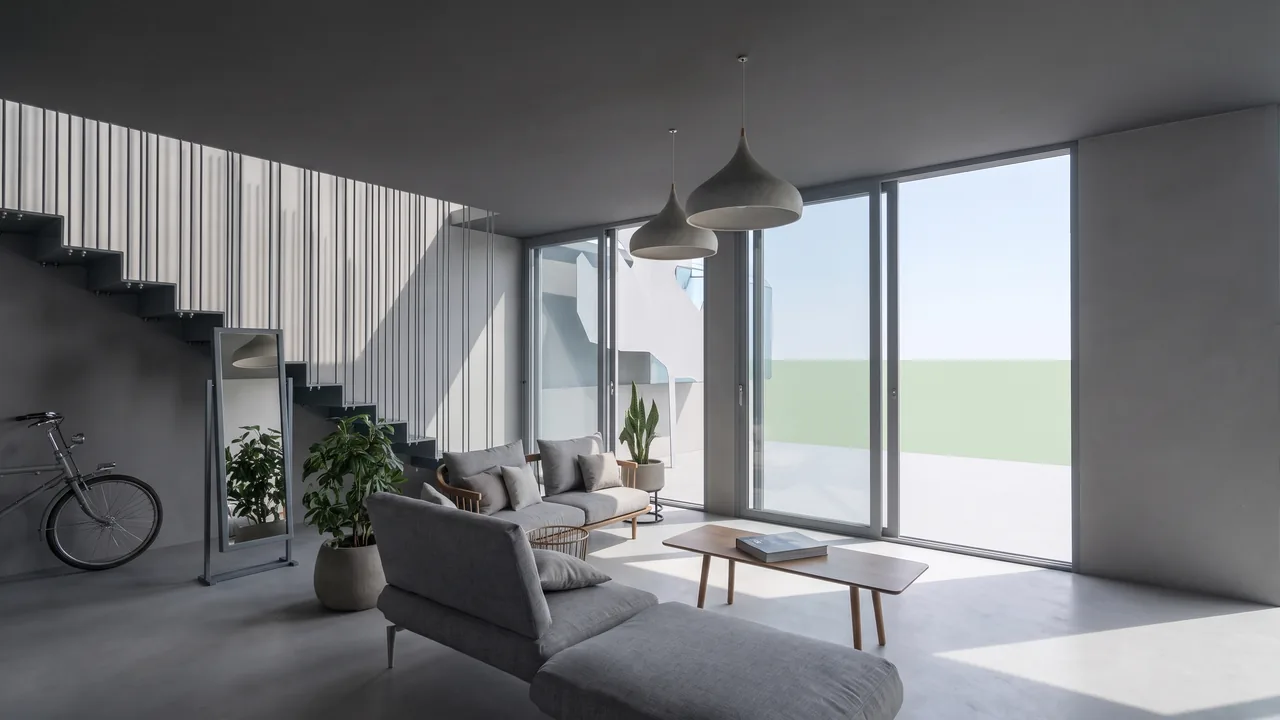
Drag the handle to compare. Works with mouse and touch.
What you can change in a Revit render
The model stays the same. On top of it, you choose the rest — or let the AI suggest.

Style and materials
Modern, Scandinavian, industrial, classic — or describe the finish you want.

Time of day and weather
Morning, golden hour, night, overcast, snow.
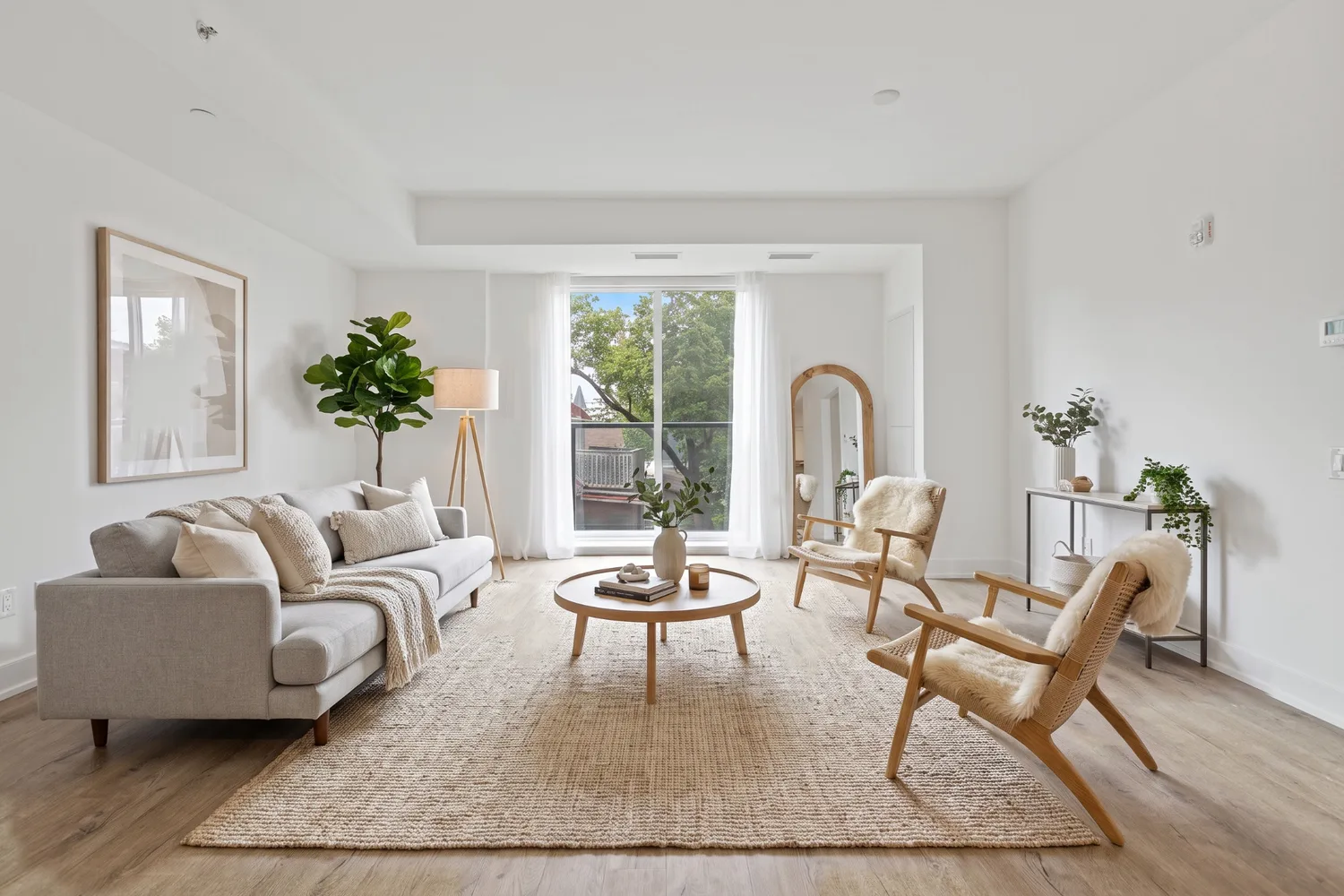
Interiors
Materials, light and decor in a room modelled in Revit — or furnish one that only has walls and openings.
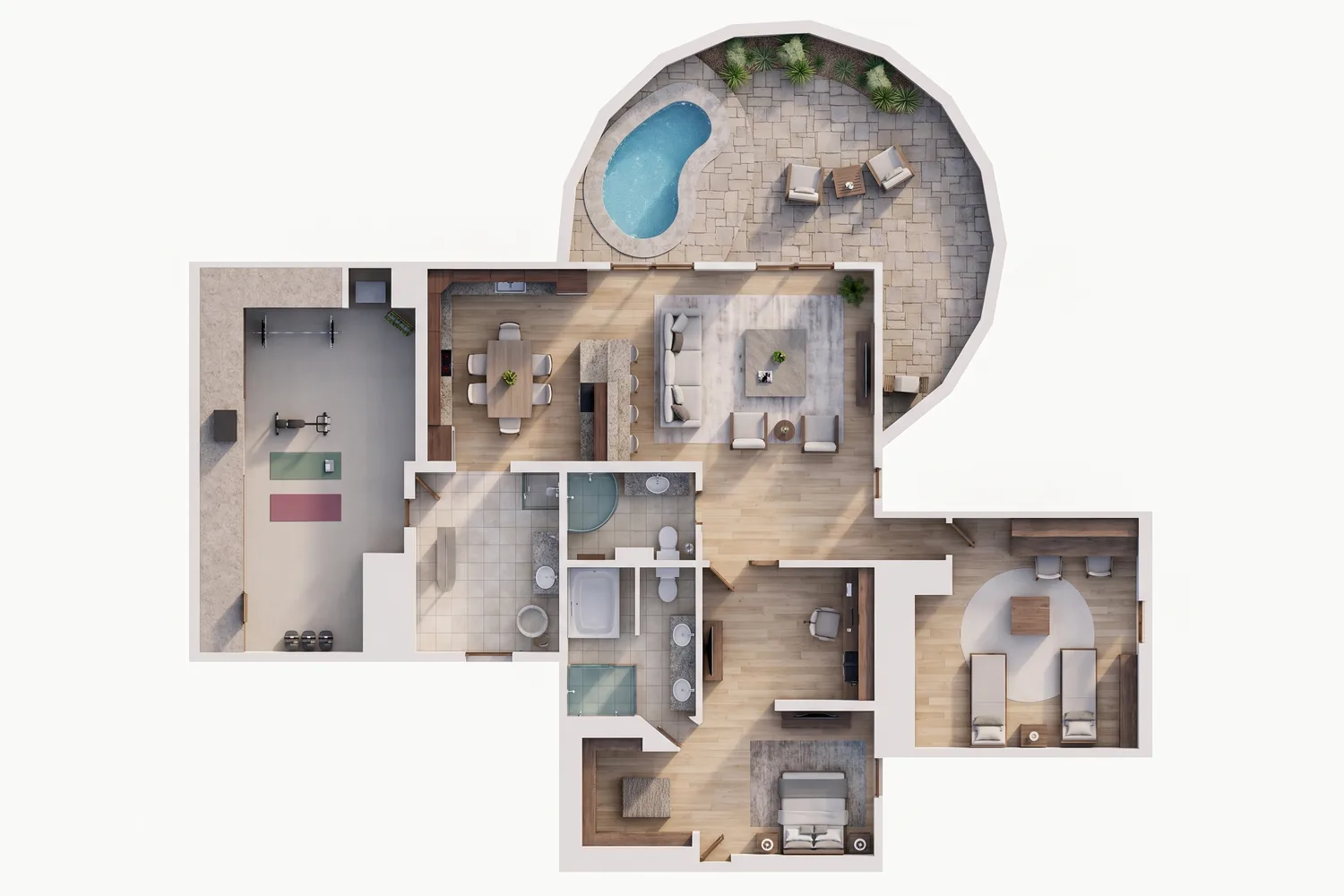
Plans, sections and elevations
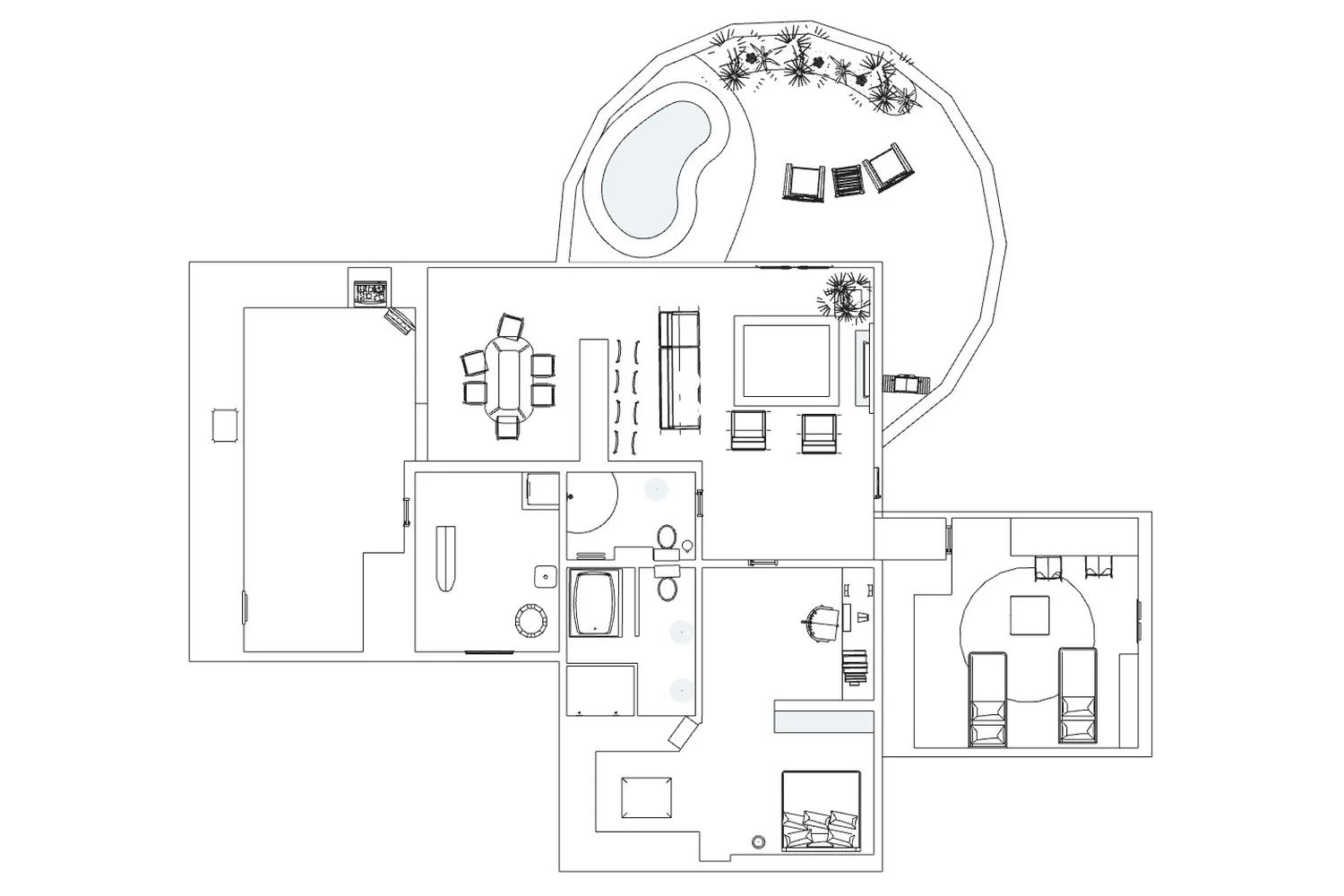
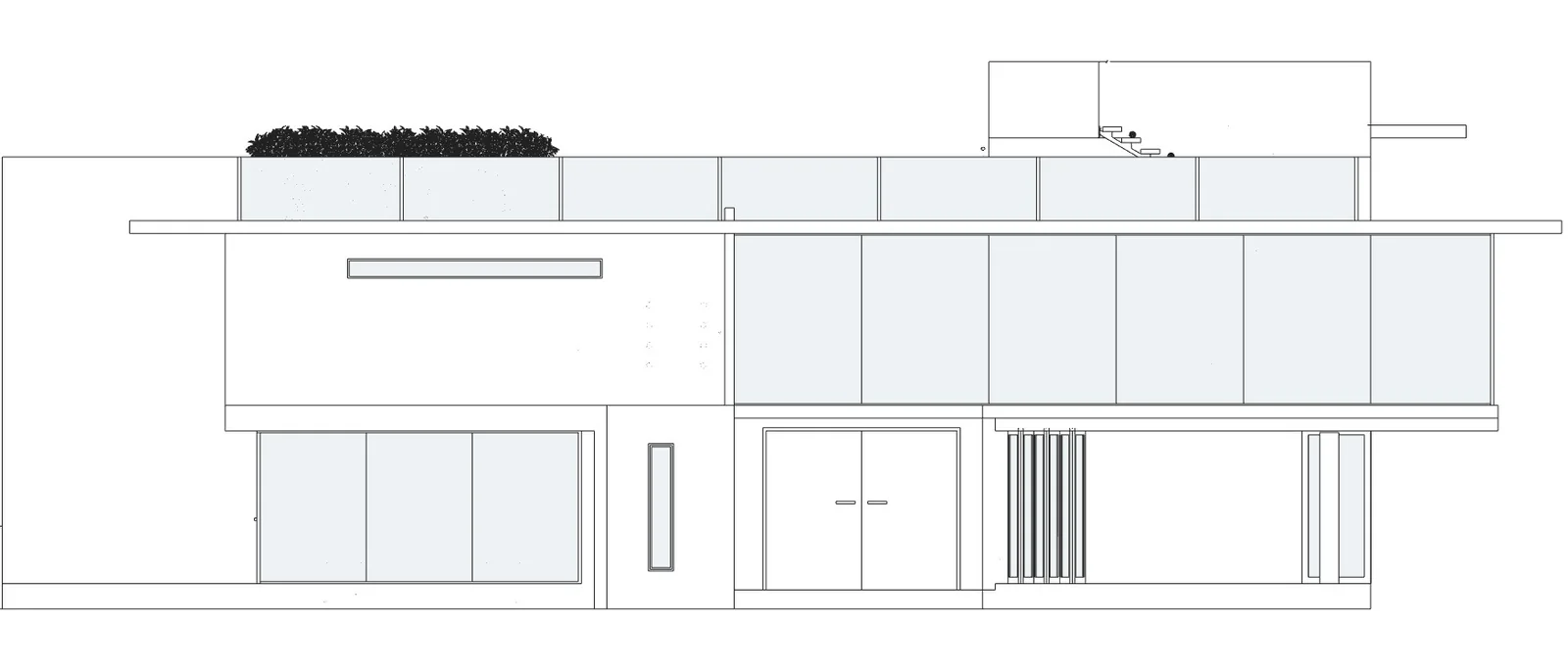
A floor plan becomes a rendered plan; sections and elevations get materials, light and surroundings.
How to render a Revit model in 3 steps
- 1
Export the view
Open a 3D view (View › Create › 3D View › Camera, or the Default 3D View), set the visual style to Shaded or Realistic and export with File › Export › Images and Animations › Image. Plans, sections and elevations export the same way.
- 2
Pick a style or describe it
Upload the image (PNG, JPG, WEBP or PDF) and pick style, time and surroundings. If you like, write what you have in mind.
- 3
Get it and adjust
In seconds the render arrives in 2K or 4K. Then you can edit one part, change the light or animate it.
The visual style that works best
Before exporting, change the view's visual style. Each one gives the AI something different.
Shaded
The safest. Grey volumes with shadows: the style you pick in RendScene decides every material.
Realistic
Use it when the model's materials are already set and you want to keep them where they are.
Consistent Colors
Separates materials by colour, but without shadows the depth reads less clearly.
Hidden Line
For line plans, sections and elevations. In a 3D view, prefer Shaded.
AI in the browser vs Revit rendering and plugins
For studies, client presentations and selling before construction. When you need to control every material, Revit's own renderer or a plugin still gives more control.
| RendScene | Revit rendering or plugin (Enscape, V-Ray…) | |
|---|---|---|
| Installation | None, it opens in the browser | Revit licence; plugin with its own licence |
| Computer | Any, even a basic laptop | Dedicated graphics card recommended for plugins |
| Time per image | Seconds | Minutes to hours, depending on the scene |
| Materials and light | Chosen by style or described | Assigned and tuned in the model |
| Fine control of each material | Less: you describe or point | Full |
| Price | 5 free renders; plans from US$ 29/month (100 credits, about US$ 0.29 per render) | Autodesk cloud rendering uses Cloud Credits; plugins have a paid licence |
3D models, before and after
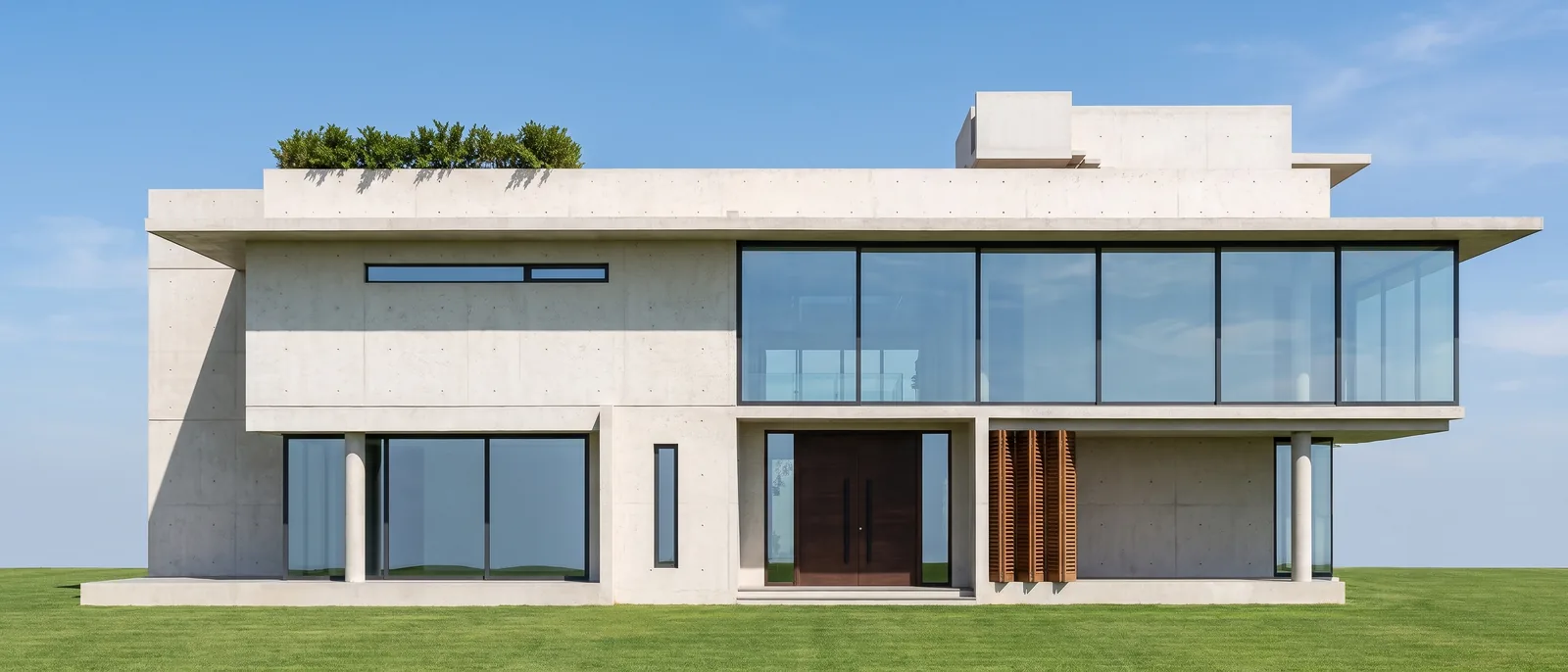
Views of 3D models in Revit's style, rendered in RendScene.
Everything you can do with an image
Click any tile to see how it works.
Ten ways to start. One render you can present.

From CAD to final image in three clicks.
- 1Upload your project
A JPG or PNG exported from any CAD or 3D modeling software.
- 2Hit render
The AI keeps what you modelled and adds photorealistic materials and lighting. Where the model defines nothing, it proposes.
- 3Download in high resolution
Images ready for client presentations, your portfolio or print.
Simple pricing, built for studios.
Subscribe monthly or yearly. Credits every month, animation available on every paid plan and saved history.
You choose the billing currency. Subscriptions already running keep being charged in their original currency.
For freelance architects and one-off projects.
For active studios with a steady flow of projects.
For firms with a team and high volume.
Subscriptions, monthly and yearly, renew automatically. You can cancel anytime from your account, with no minimum term and without contacting anyone: renewal stops at the end of the period you already paid for. The separate 7-day right of withdrawal, with a refund, still applies.
* Prices in US dollars. On international purchases, your bank may add taxes and currency conversion fees — the final amount on your statement can be slightly higher.
Credit packs, no subscription needed
One-time purchase, no renewal. Credits last 12 months, images come out unmarked, and everything is unlocked: 4K, Upscale and history.
Pack-only account: 1 GB of storage and images kept for 1 year. Nothing is deleted without an email warning first.
Plan credits do not roll over: they reset when the cycle turns. How credits work
Who uses Revit AI rendering
Architects
Show the study to your client the same day, straight from the model, without stopping to set up a render.
Interior designers
Try styles, colours and furniture in the same room in seconds.
BIM coordinators and designers
A presentation image without touching the materials of the documentation model.
Builders and developers
Images to sell before construction starts.