AI virtual staging: how to furnish an empty room
Empty rooms are hard to sell and hard to imagine. With AI virtual staging you add furniture, rugs, lamps and plants to a photo or render in about a minute, while the room itself stays exactly as photographed.
4 min read
What you will get
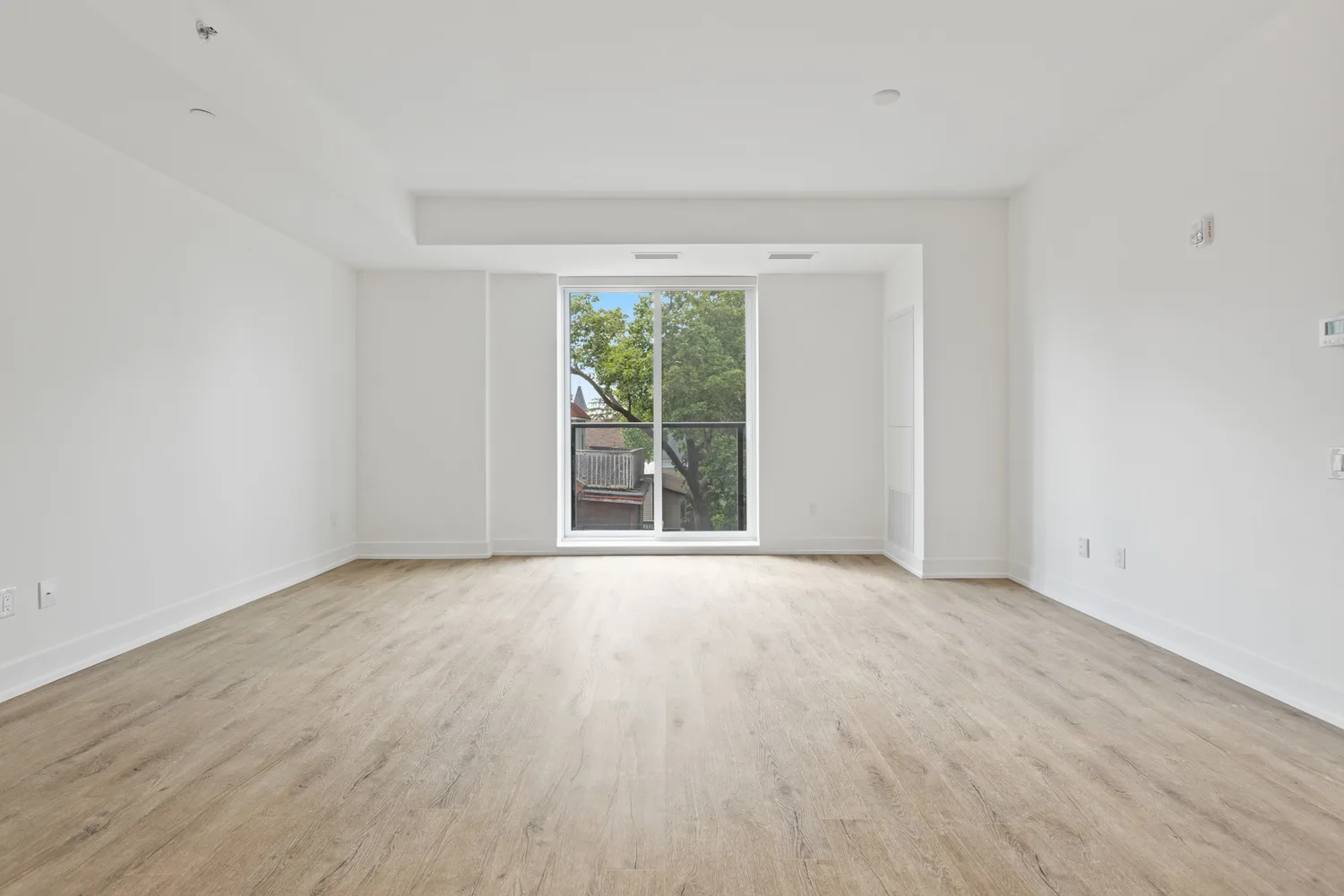
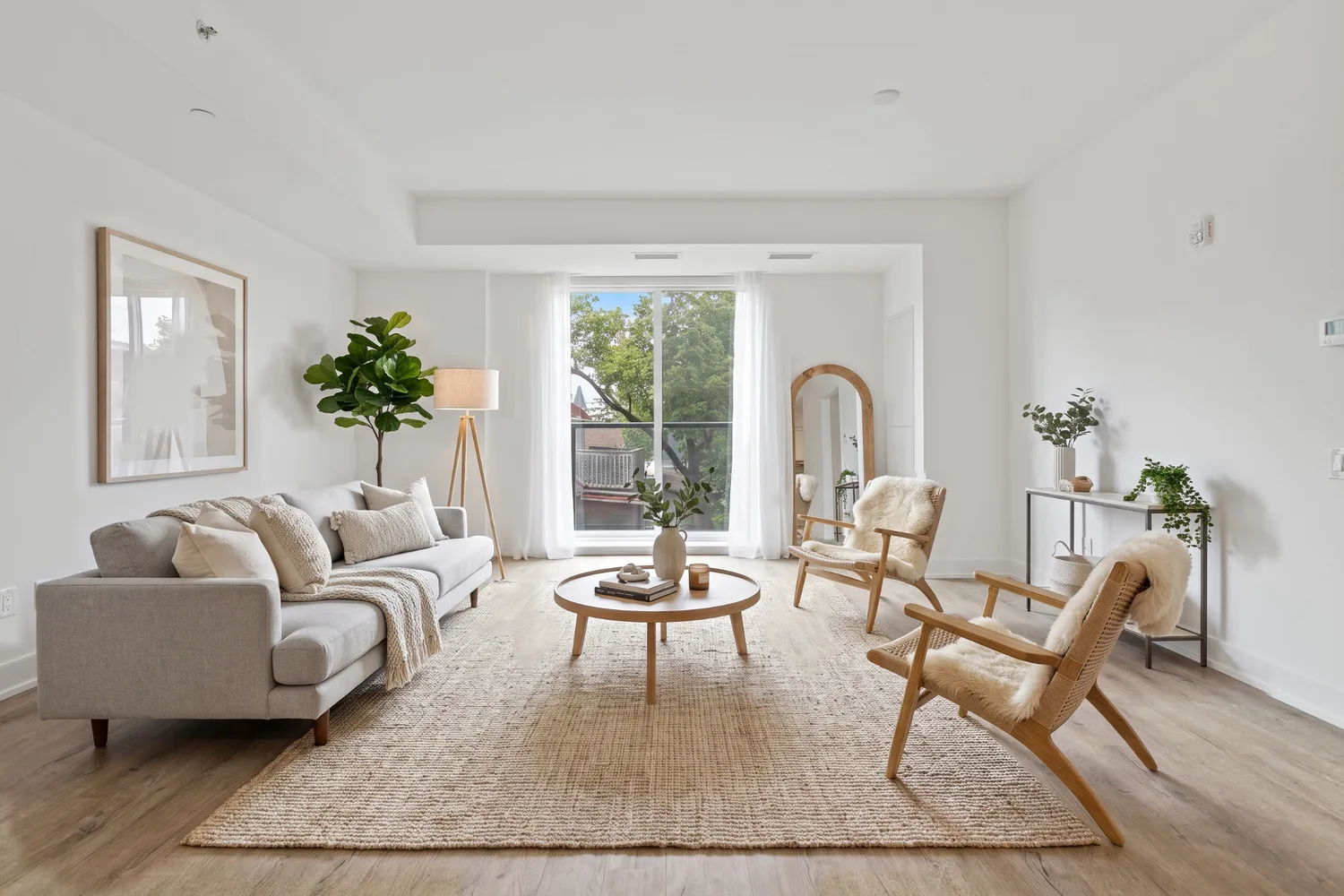
Drag the slider to compare before and after.
What you need
- A photo of an empty room, or a render of one.
- A good, straight photo: level camera, room well lit.
- A free RendScene account (5 free renders, no credit card).
Step by step
- Step 1
Open the image in Edit
In RendScene, go to Edit and upload the room photo, or pick a render from your recent work.
- Step 2
Choose Furnish the room
In Image tools, choose Furnish the room. It adds or swaps furniture, rugs, curtains, lamps, art and plants only. Floor, walls, ceiling, windows, doors, built-in units and the light stay as they are. If you also want to change finishes, use Redecorate the room instead.
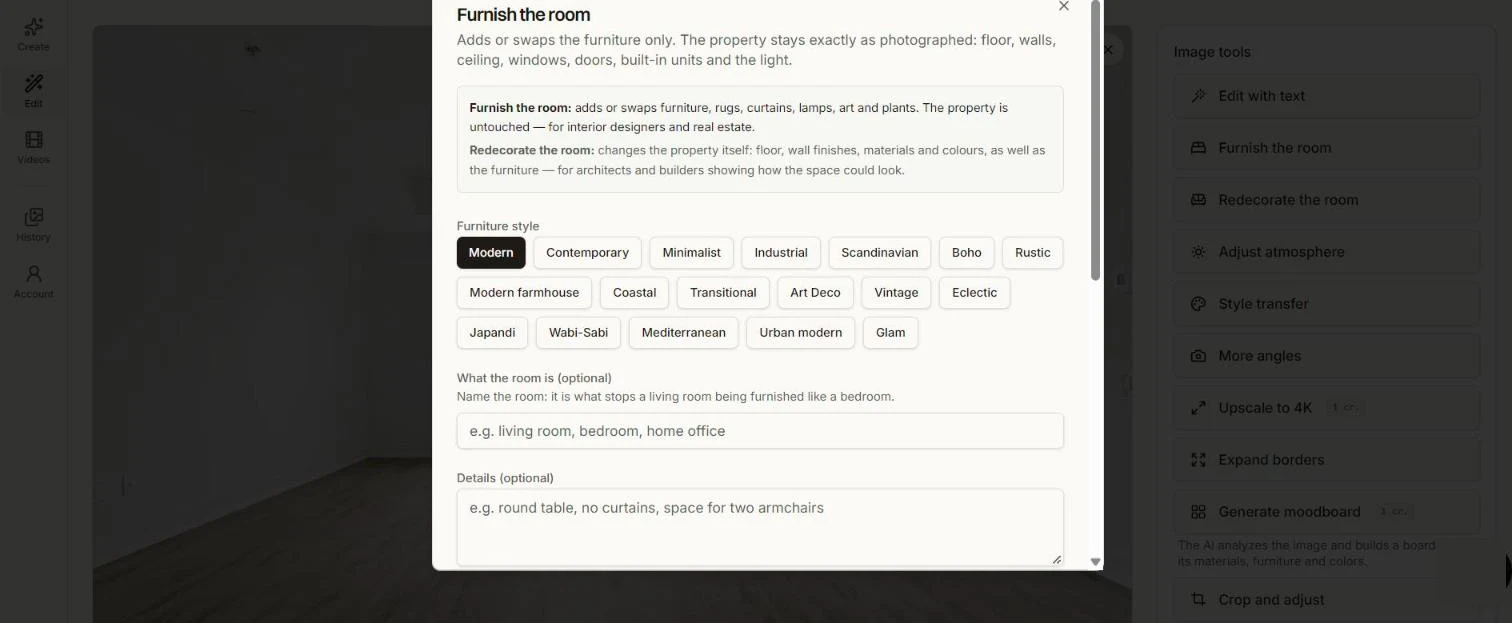
Furnish the room: pick a style and say what the room is. - Step 3
Pick a style and name the room
Choose a furniture style: Modern, Scandinavian, Japandi, Coastal and many more. Name the room (living room, bedroom, home office): it stops a living room being furnished like a bedroom. Add details if you like, such as "round table, space for two armchairs".
- Step 4
Generate and compare
Generate and compare the options. Pick the one that fits the room and the buyer.
- Step 5
Download
Download in 2K or 4K. Try another style on the same photo to show different possibilities.
Tips for better results
- Always name the room. It is the single biggest help for a correct layout.
- Shoot from a corner at chest height for the most natural staging.
- Turn on the lights and open the curtains before taking the photo.
- If you sell real estate, follow your local rules on disclosing virtually staged photos.